How To Use Our Service
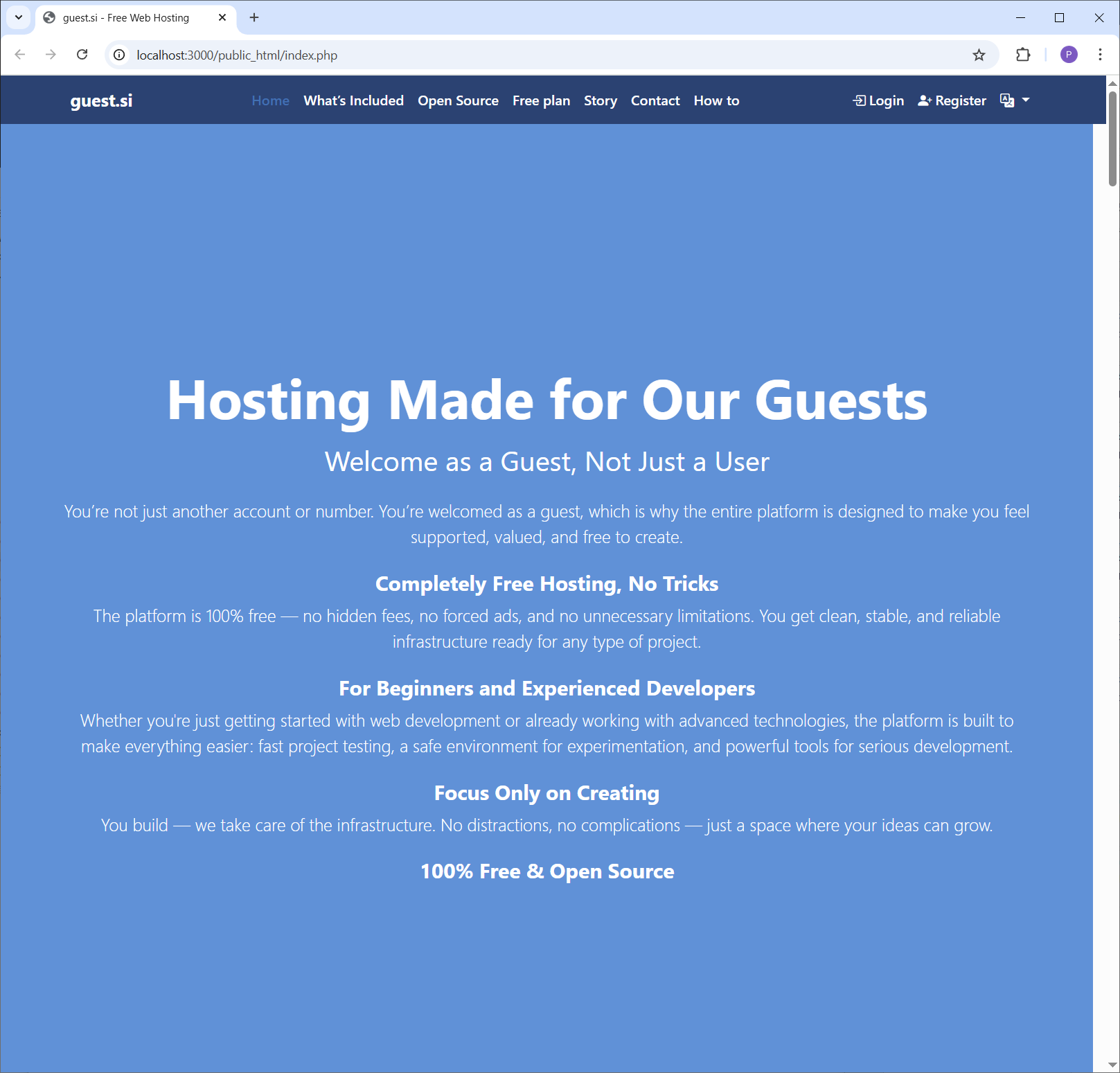
Start on the Homepage
Your journey begins on our main page. Look for the "Register" button, typically located in the top-right corner of the navigation bar, and give it a click to start the process.
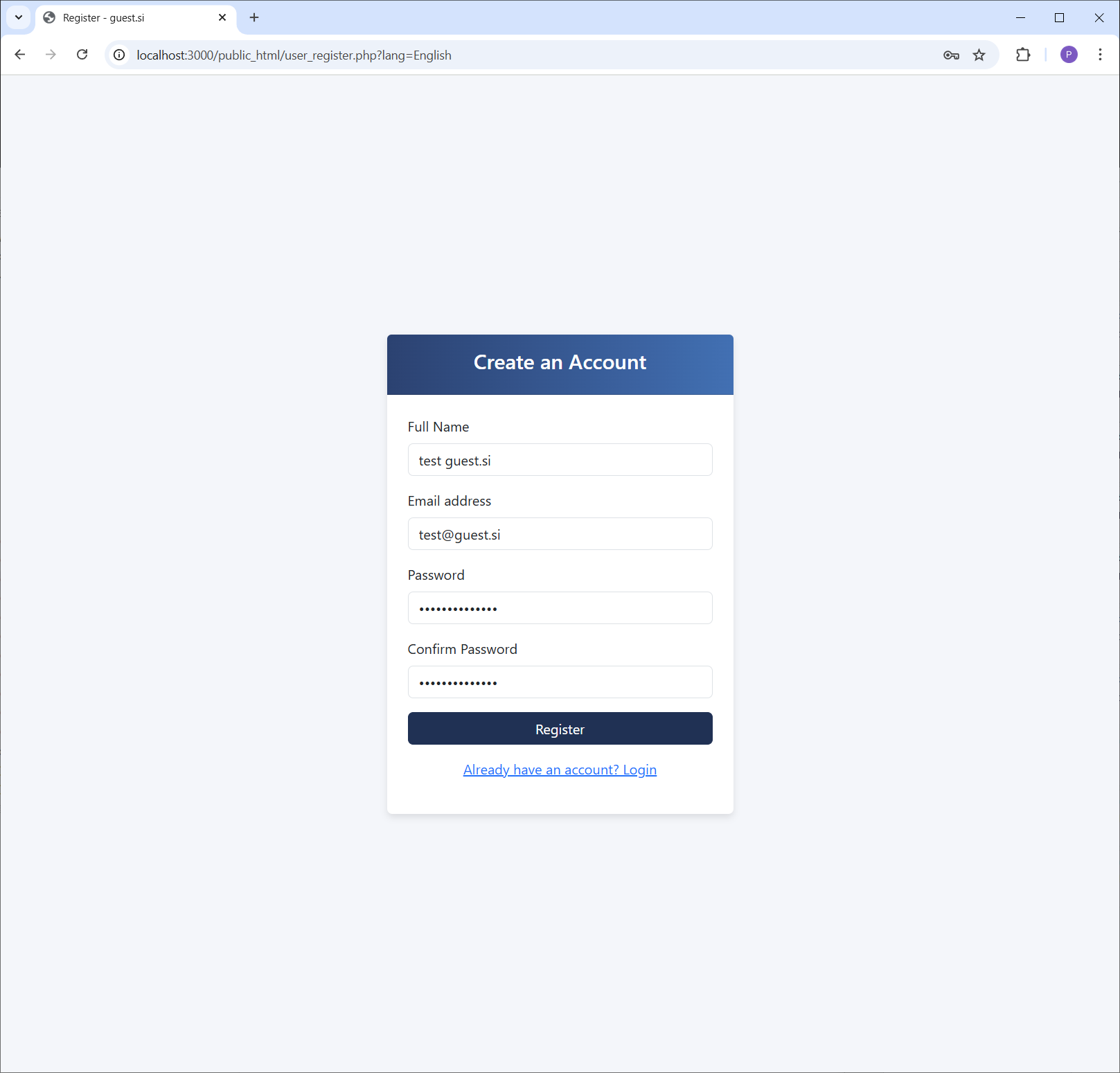
Create Your Account
You'll be taken to the registration form. Fill in your full name, a valid email address, and choose a secure password. Confirm your password to ensure there are no typos.
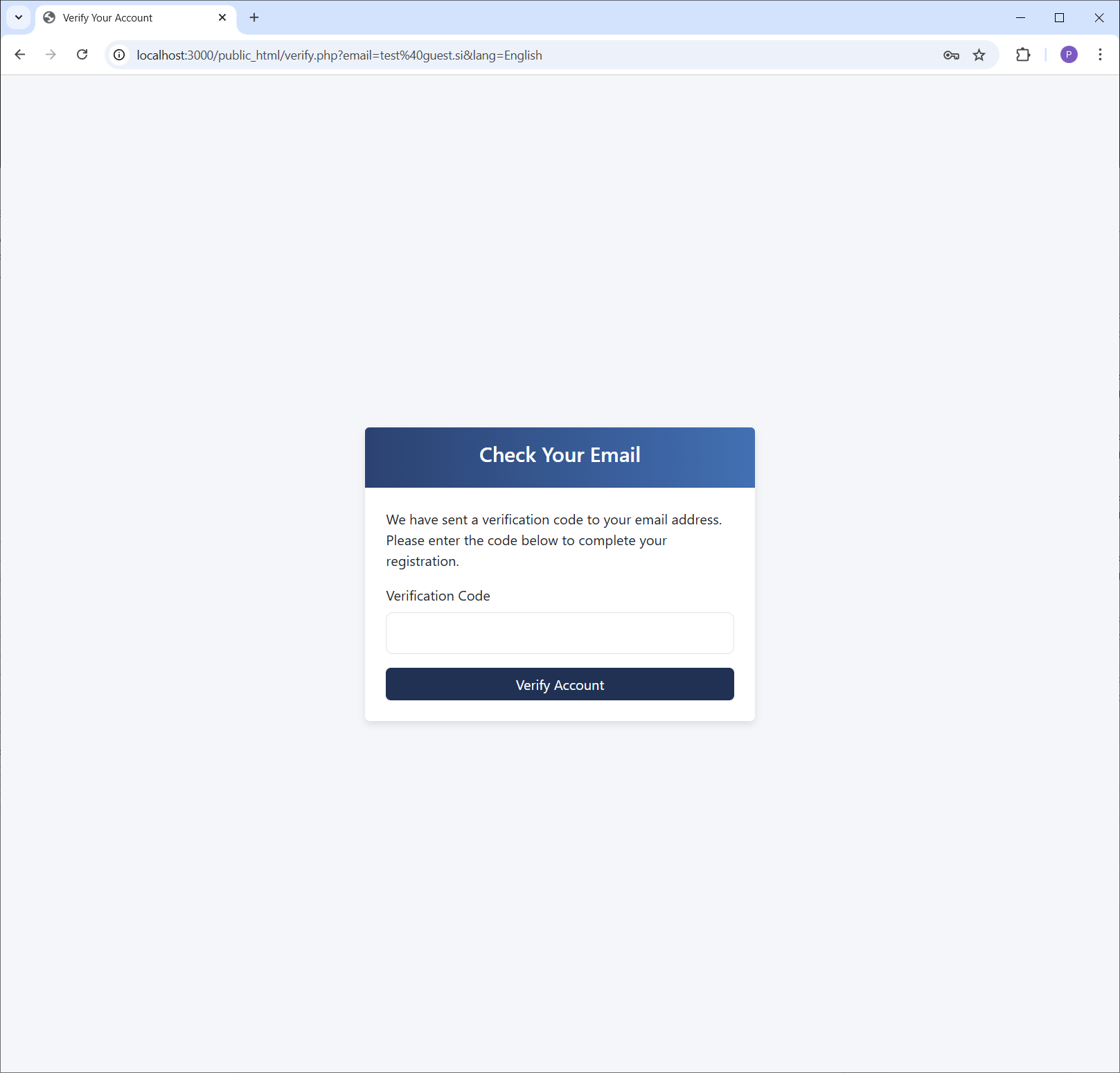
Check Your Email
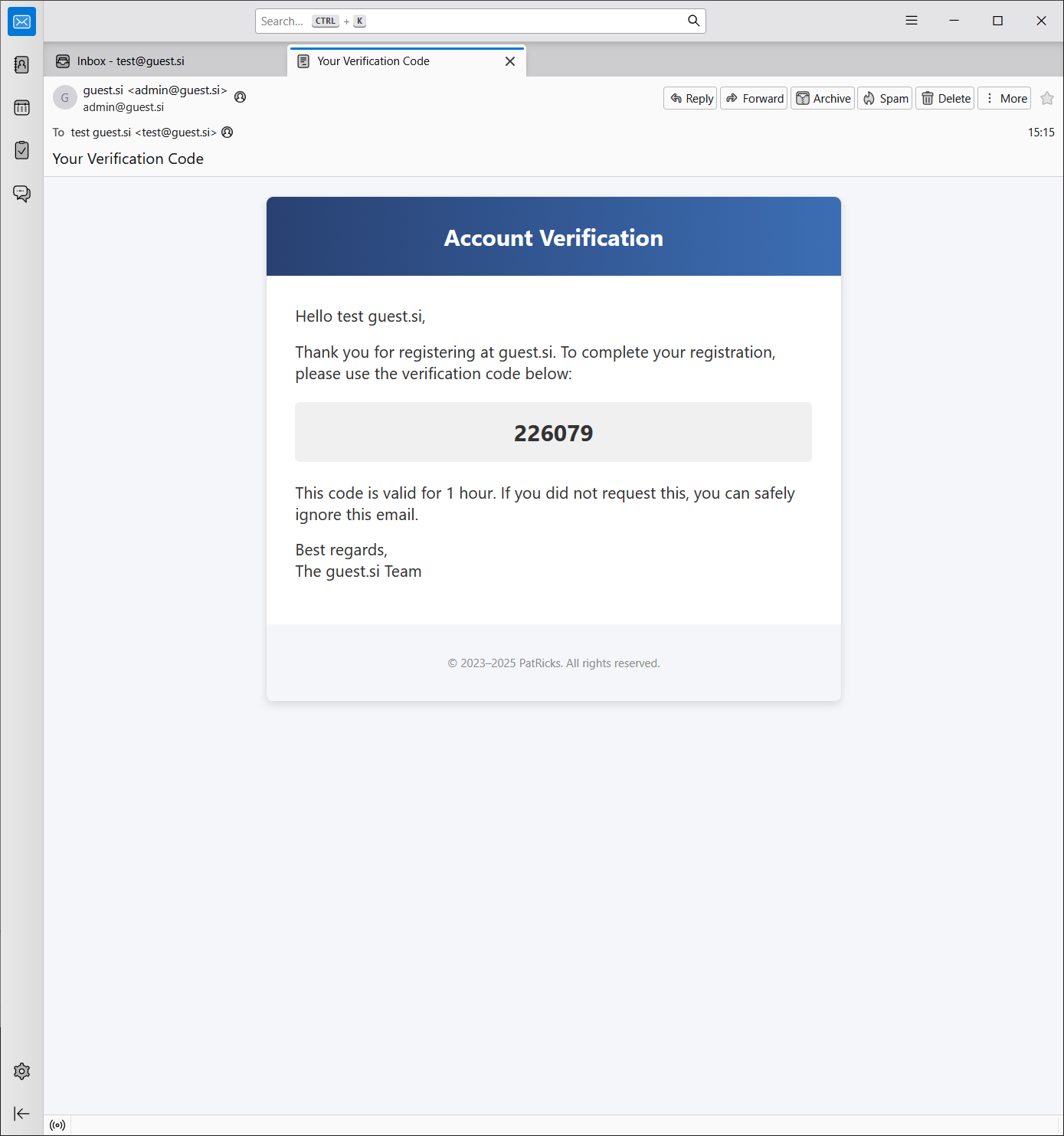
After submitting the form, we need to verify your email. We've sent a 6-digit verification code to the address you provided. Keep this page open and check your inbox.
Find the Verification Code
Open your email client and look for a message from us with the subject "Account Verification". Inside, you will find the 6-digit code needed to activate your account.
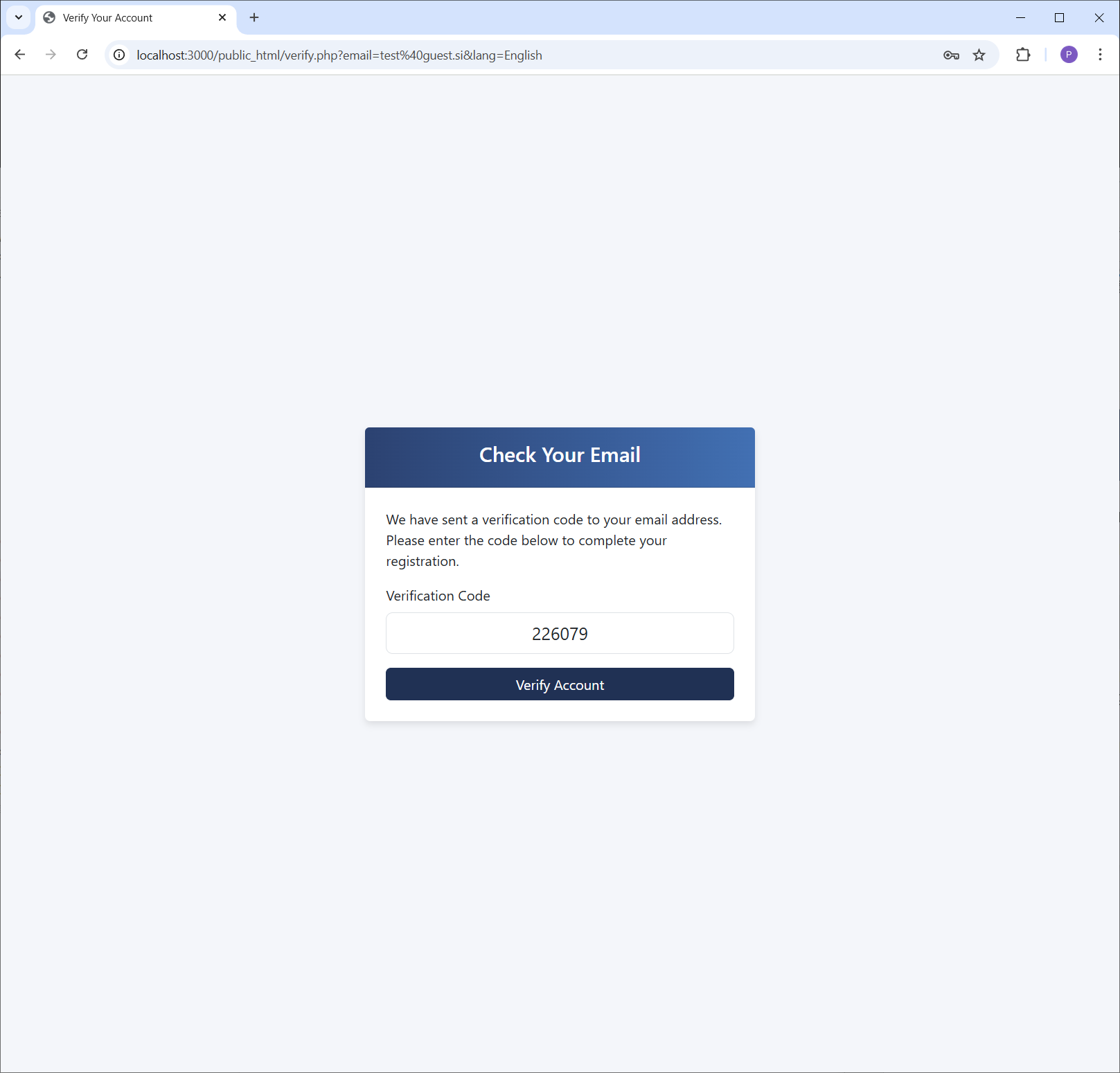
Verify Your Account
Return to our website, enter the 6-digit code from your email into the verification field, and click the "Verify Account" button to complete the registration process.
Registration Complete!
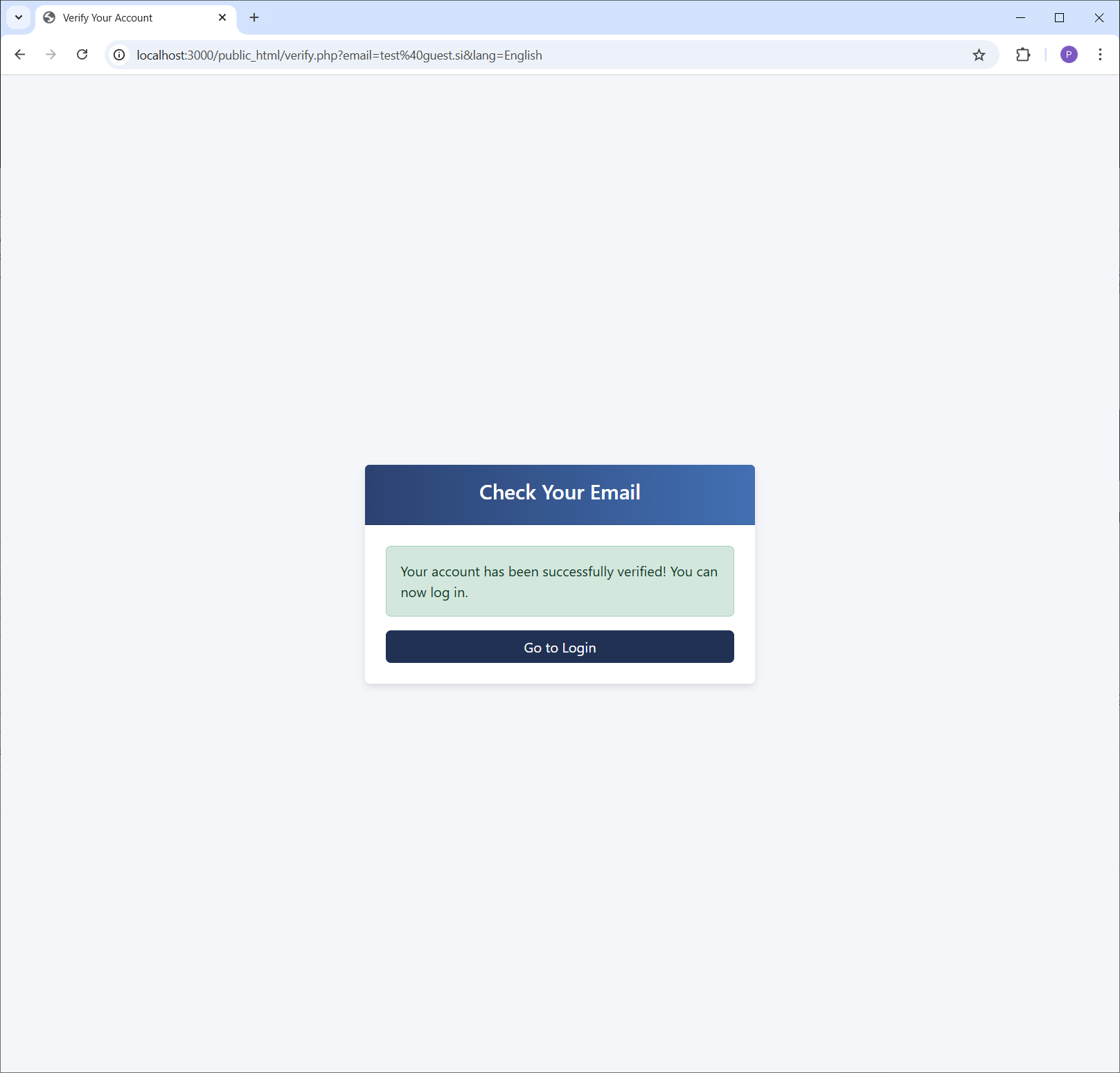
Success! Your account has been successfully verified. You can now proceed to the login page to access your new user control panel.
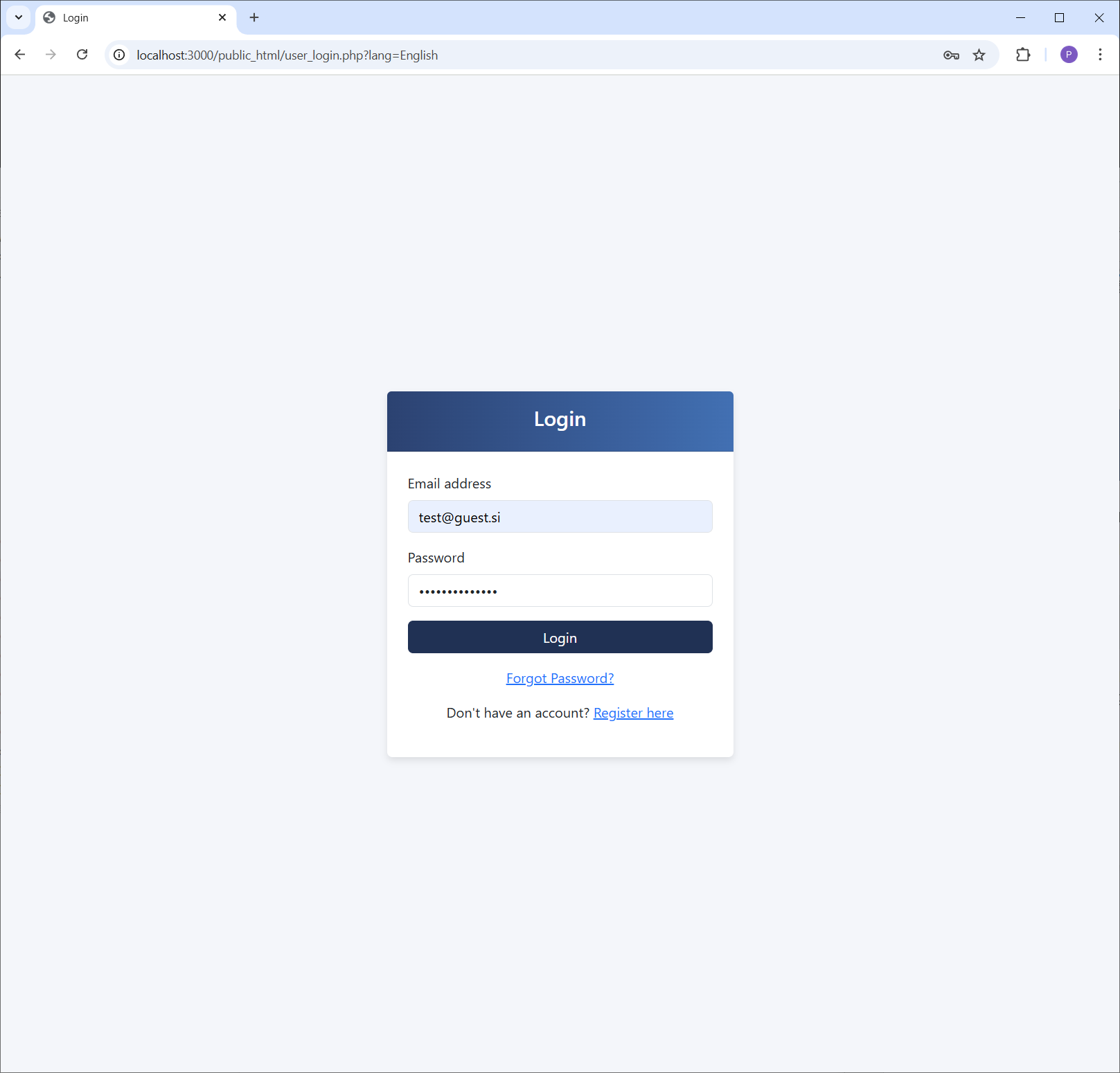
Log In to Your Account
On the login page, enter the email address and password you used during registration. If you've forgotten your password, there's a link to help you reset it.
Welcome to the Dashboard
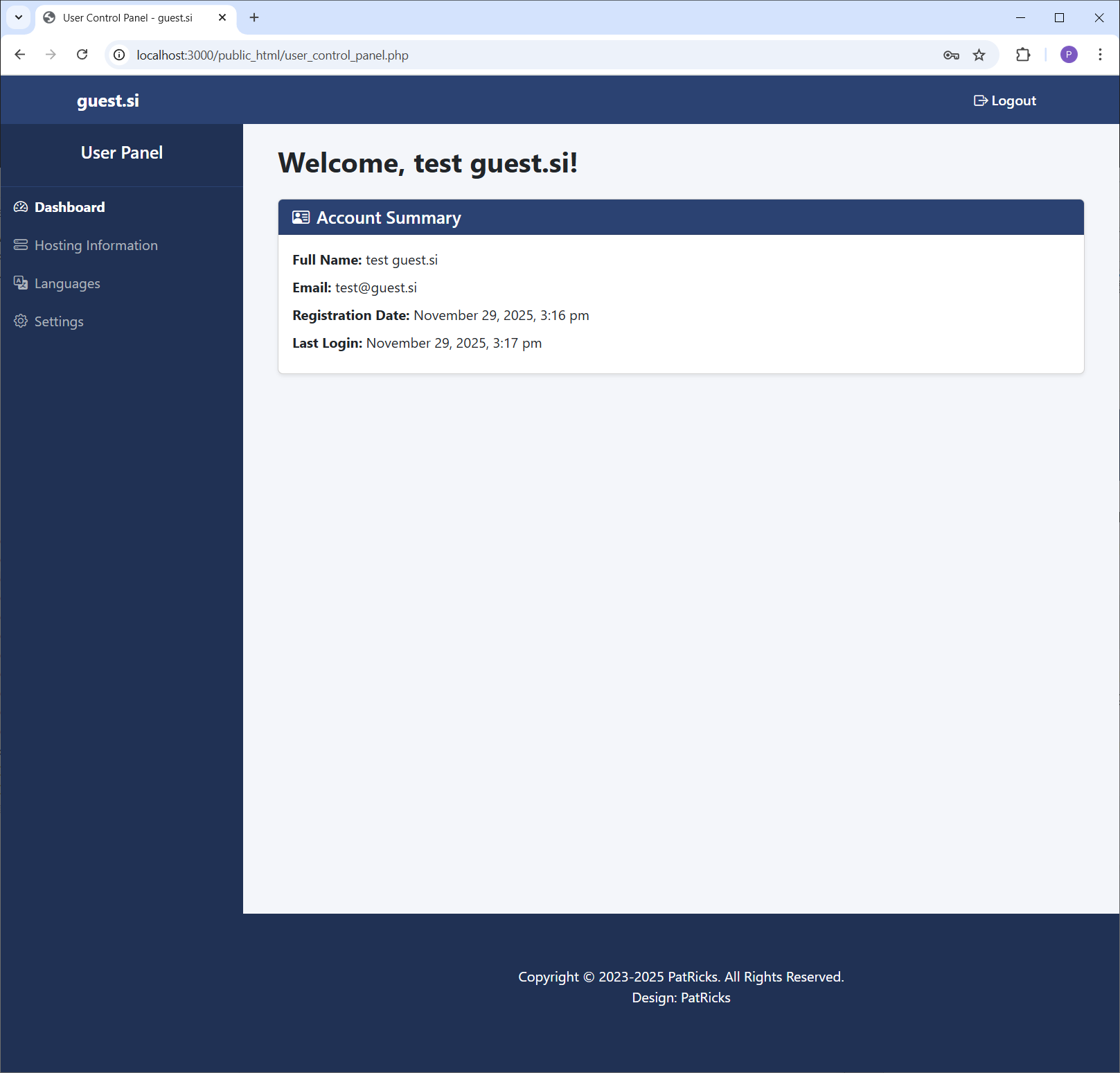
This is your user panel dashboard. It provides a quick summary of your account details, including your name, email, and recent login activity.
Find Your Hosting Details
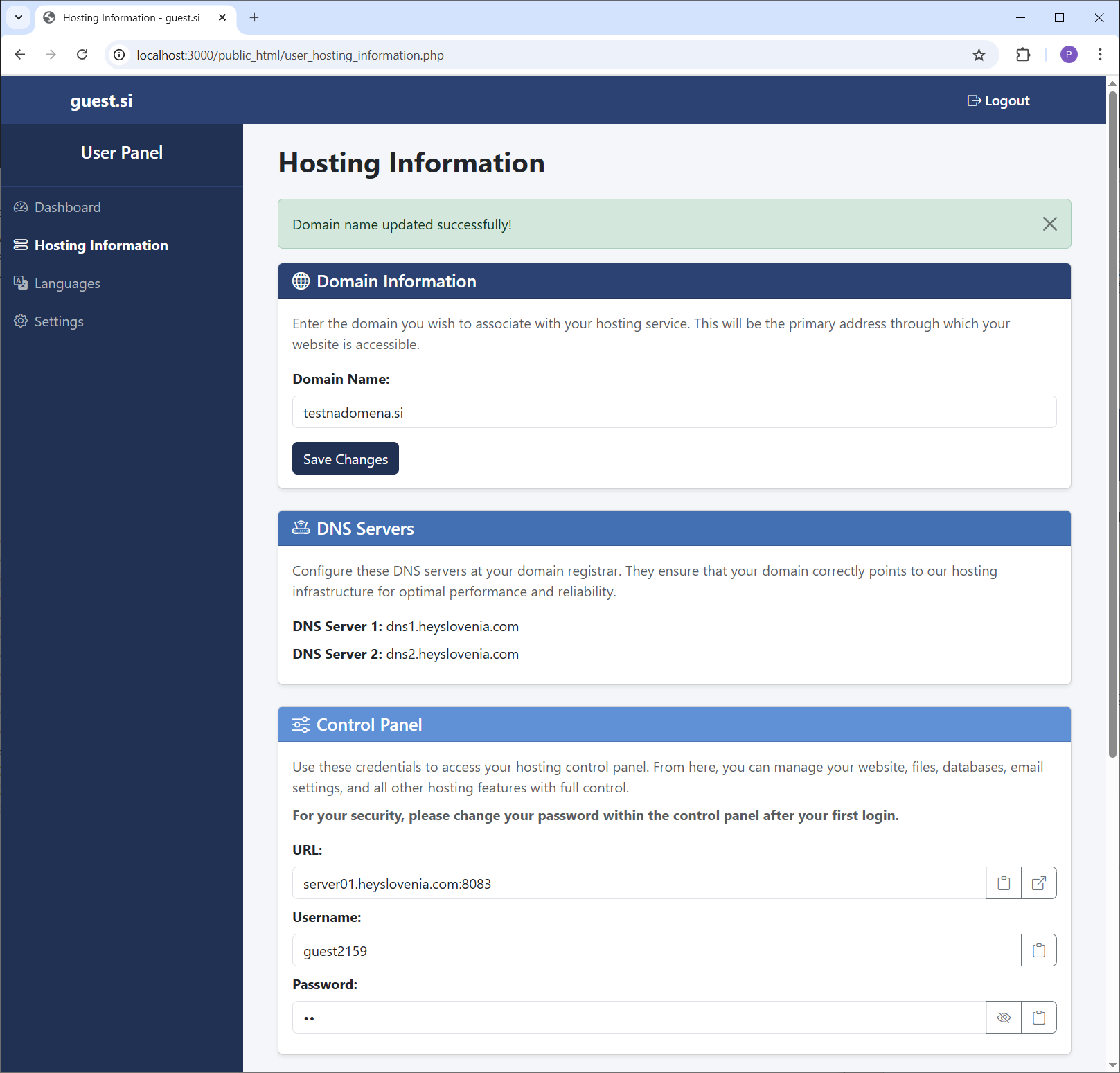
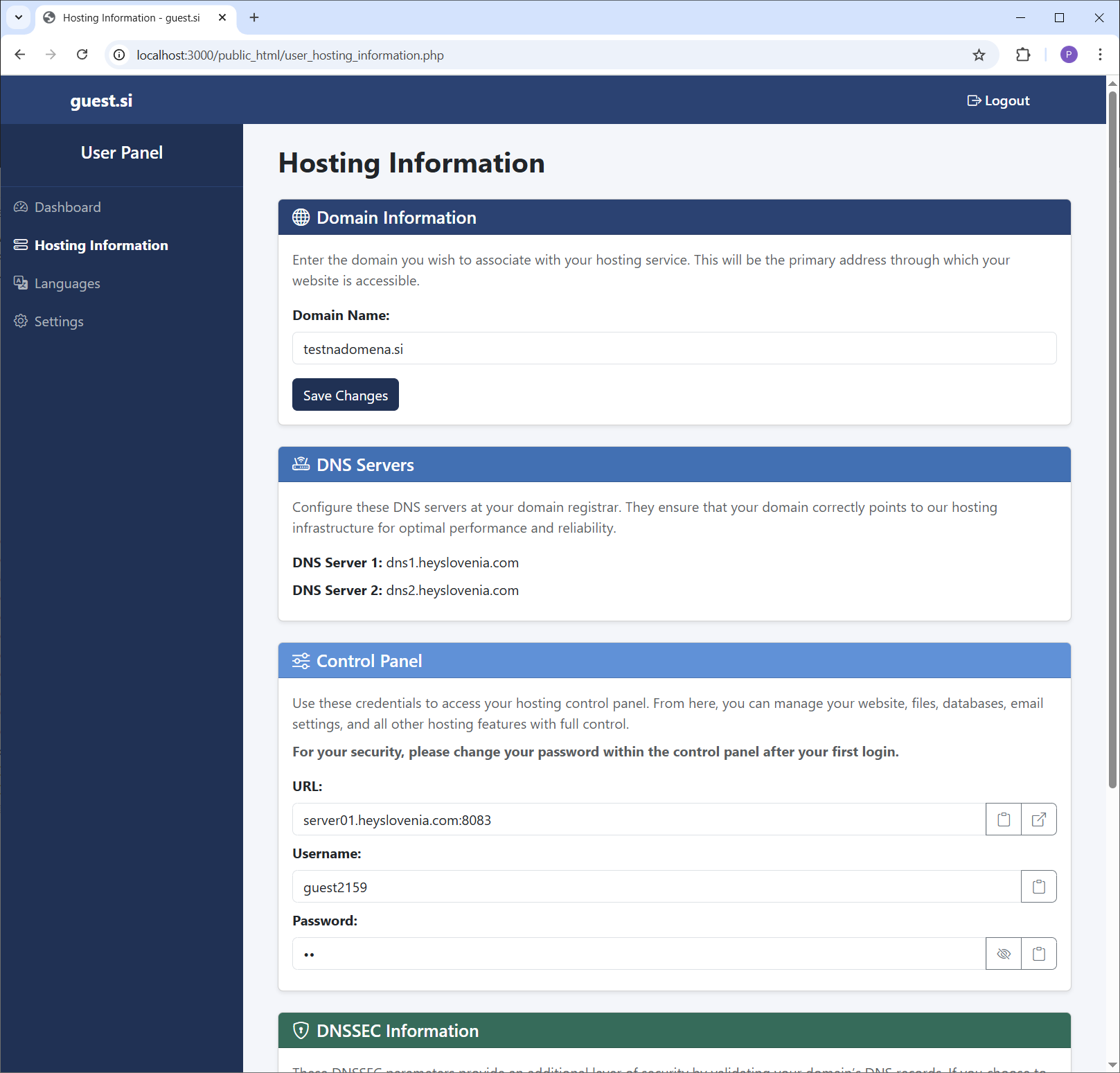
Navigate to the "Hosting Information" tab. This is the most important page, containing your domain settings, DNS servers, and Control Panel login credentials.
Set Your Language
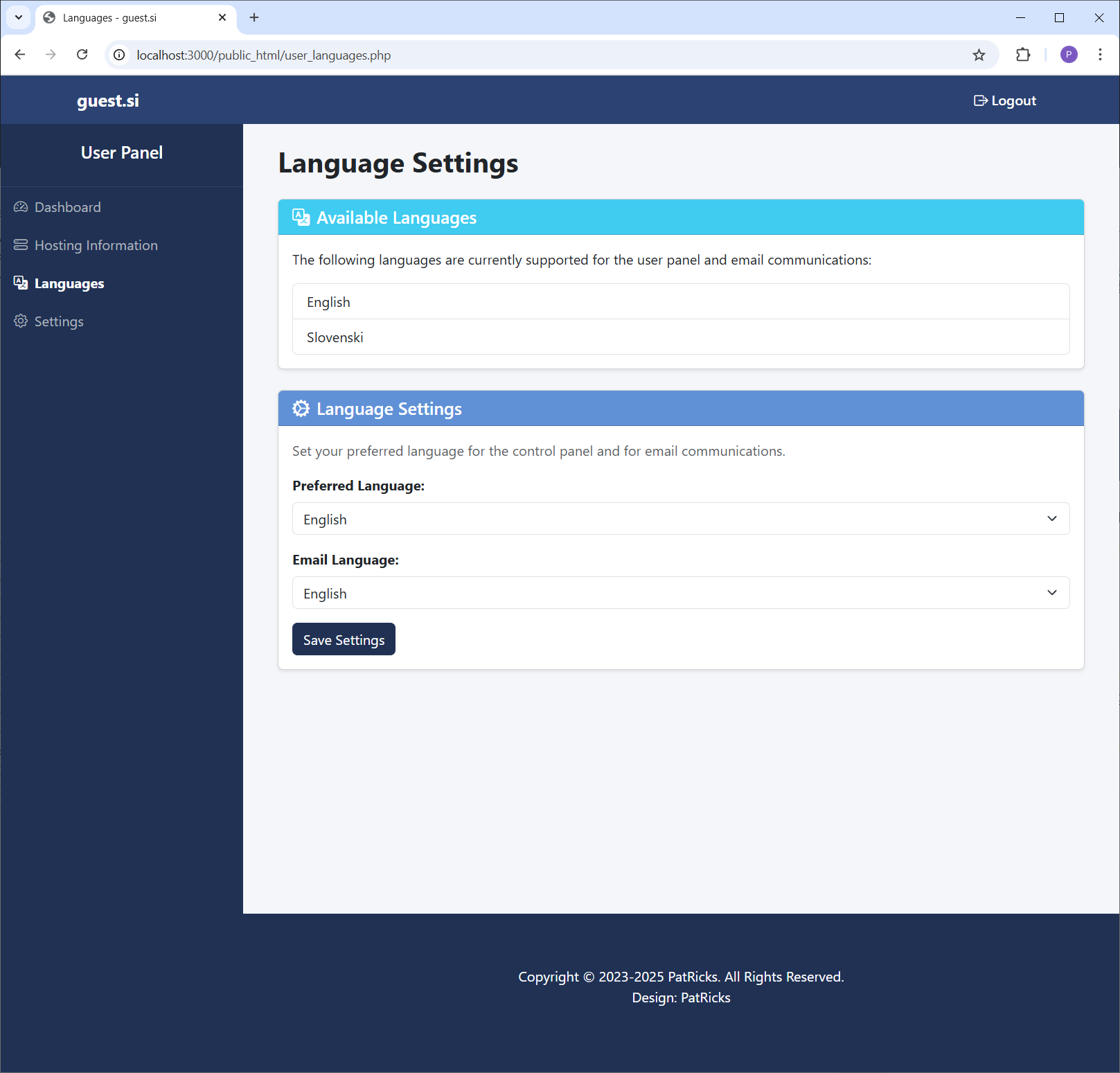
In the "Languages" tab, you can set your preferred language for both the user panel and for any email communications we send you, ensuring a comfortable experience.
Manage Your Security
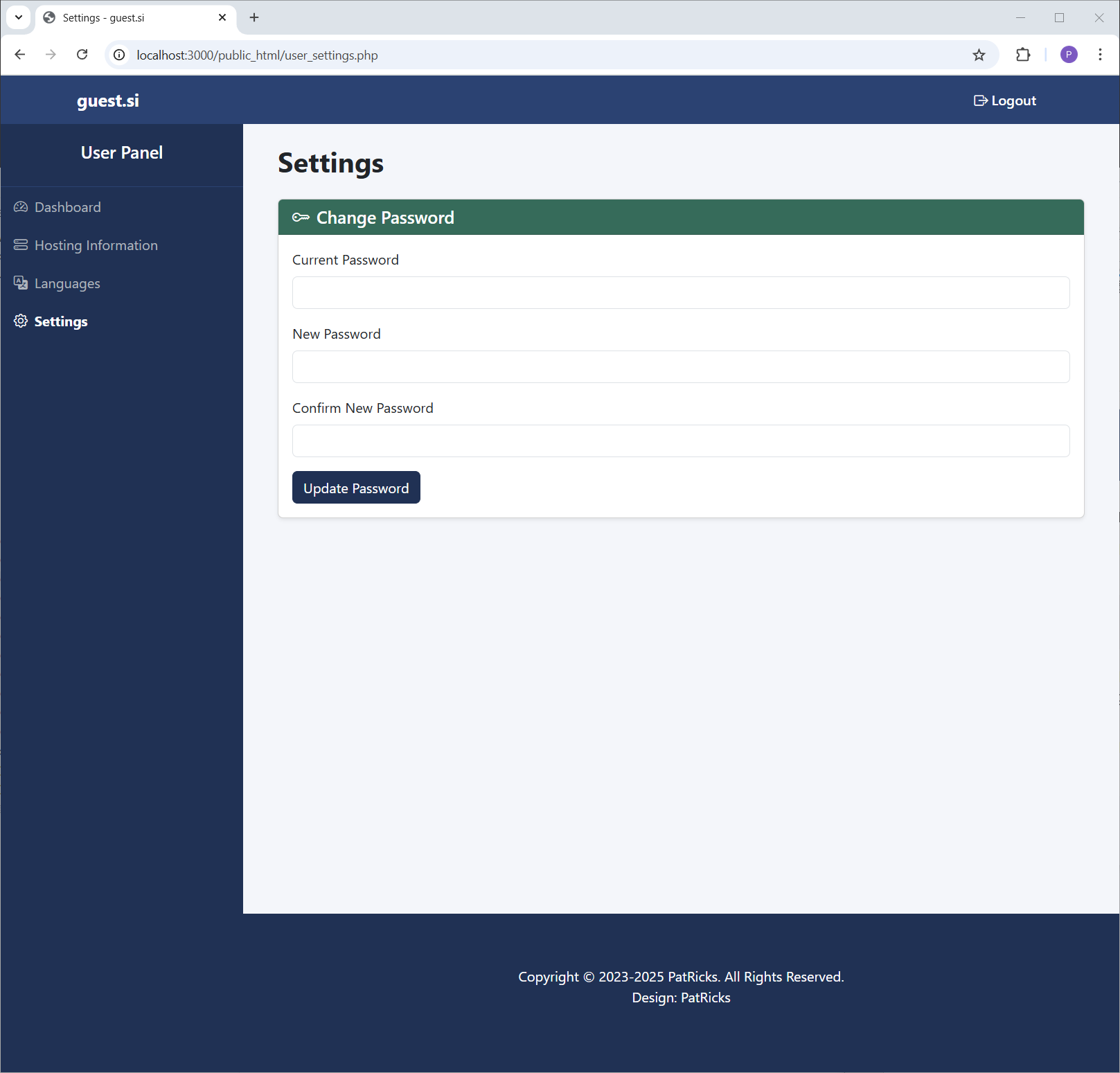
The "Settings" tab allows you to change your user panel password. It's good practice to update your password periodically to keep your account secure.
Access Your Control Panel Credentials
Back in "Hosting Information", you'll find the URL, username, and password for your server's Control Panel. You'll need these to manage your website files.
Log in to the Server Control Panel
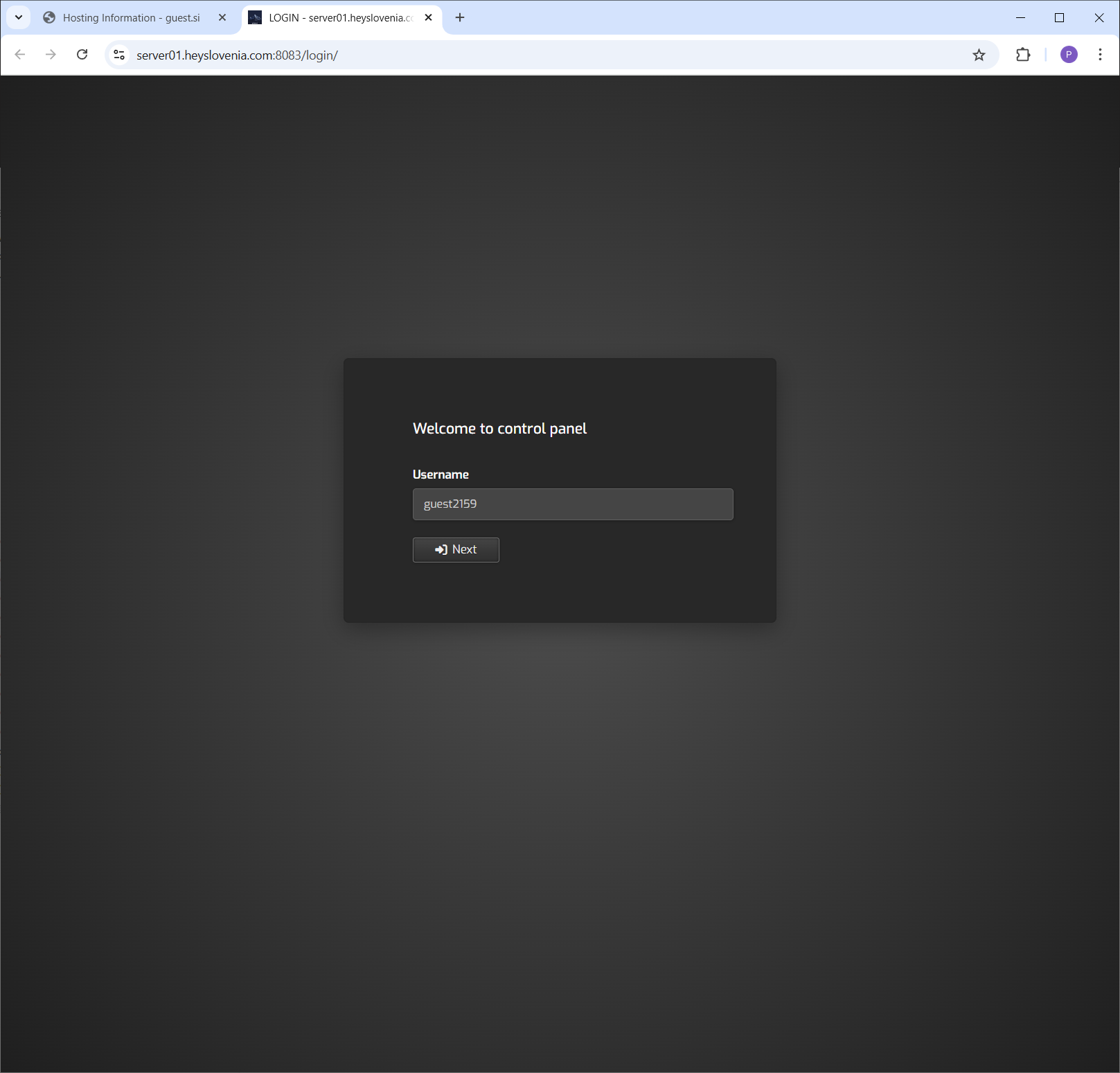
Open the Control Panel URL in a new tab. This separate login provides direct access to the server. Start by entering the username you copied from the previous step.
Enter Your Server Password
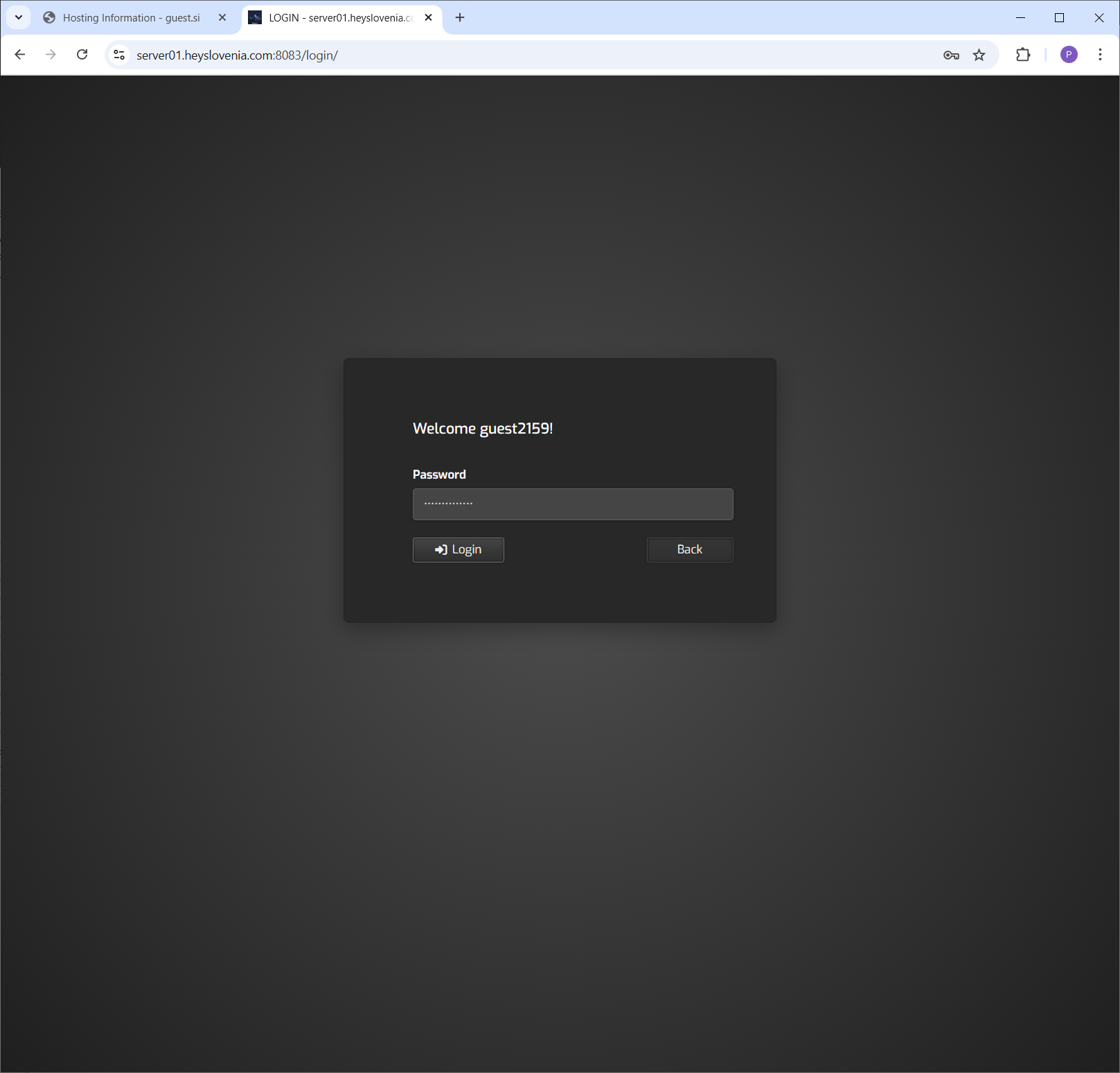
Next, enter your password for the server Control Panel. For security, we recommend changing this password after your first login.
Welcome to the Server Dashboard
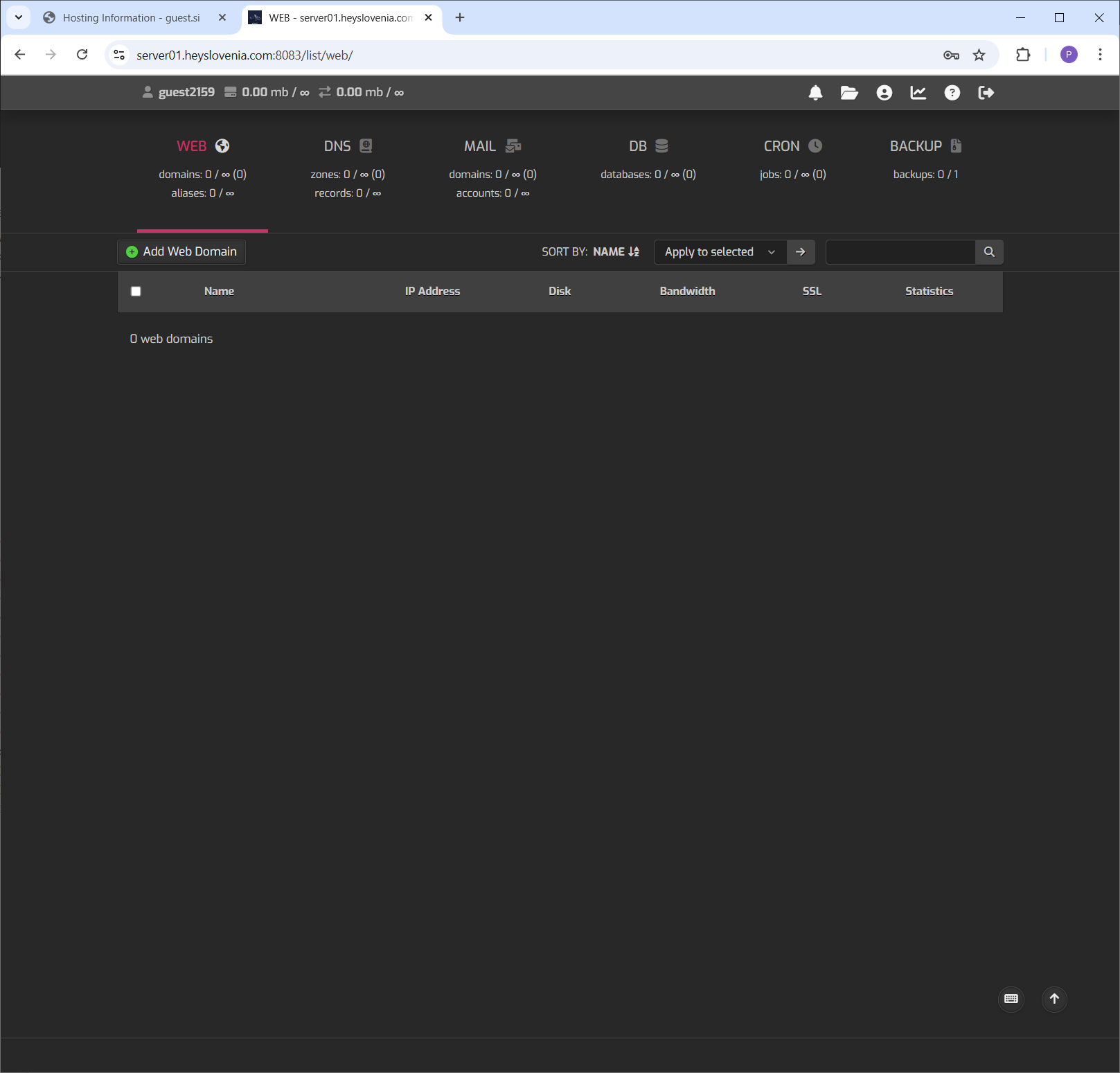
You're in! This is the powerful server Control Panel where you can add your web domain, manage files, create databases, and bring your project to life.
How to Reset Your Password
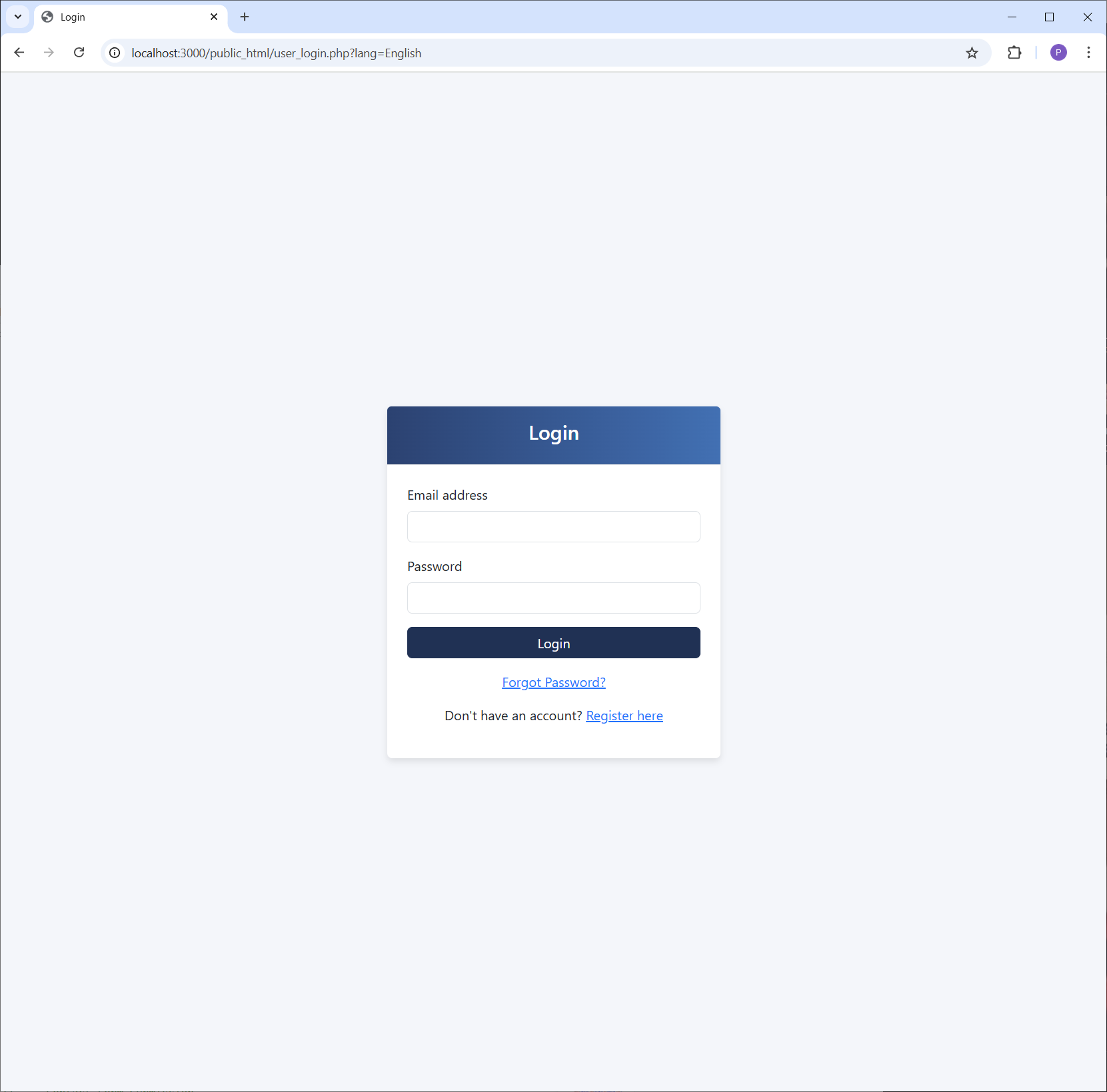
Start from the Login Page
If you've forgotten your password, navigate to the login page and click the "Forgot Password?" link located below the login button.
Enter Your Email Address
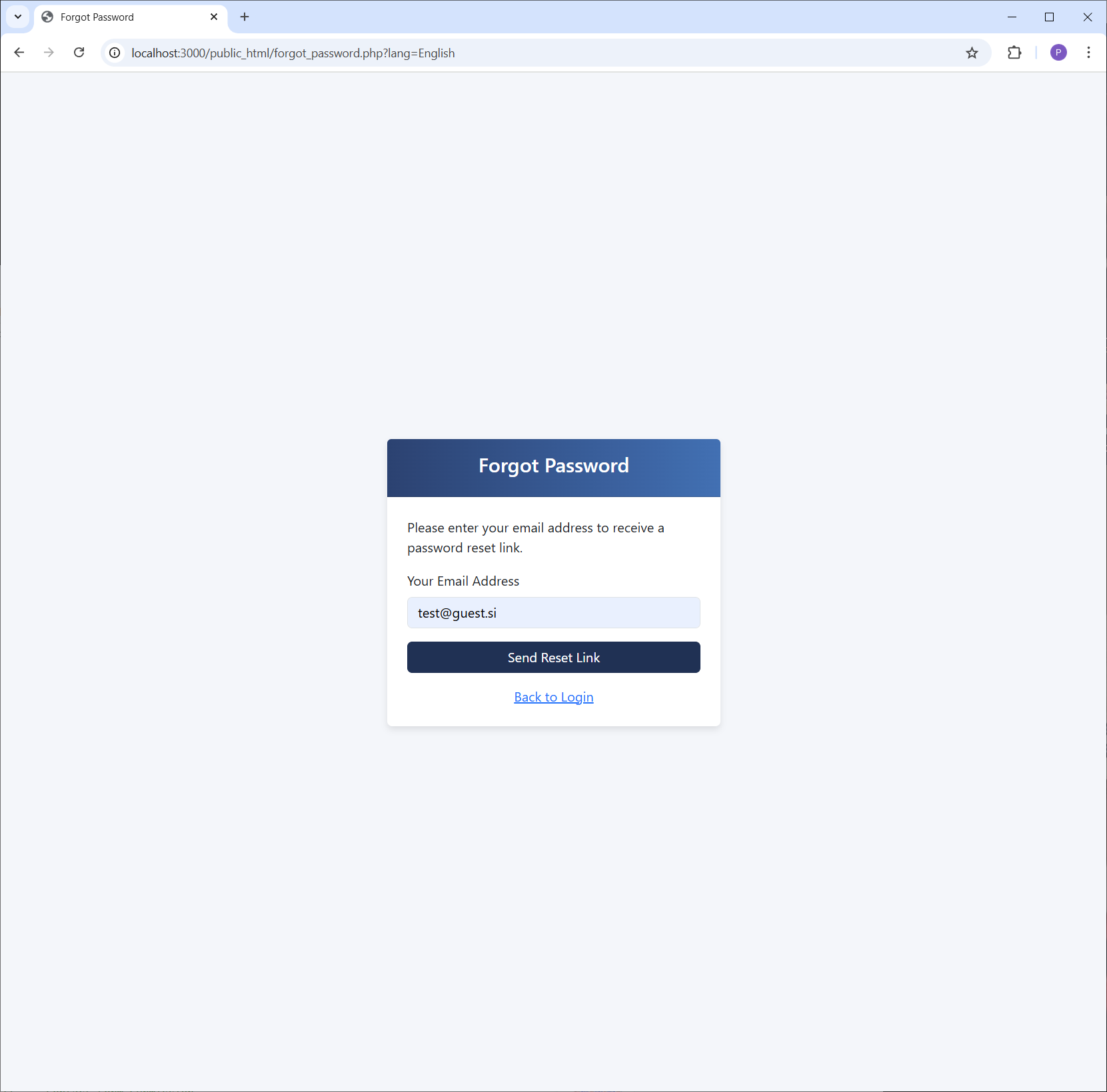
On the "Forgot Password" page, enter the email address associated with your account and click the "Send Reset Link" button.
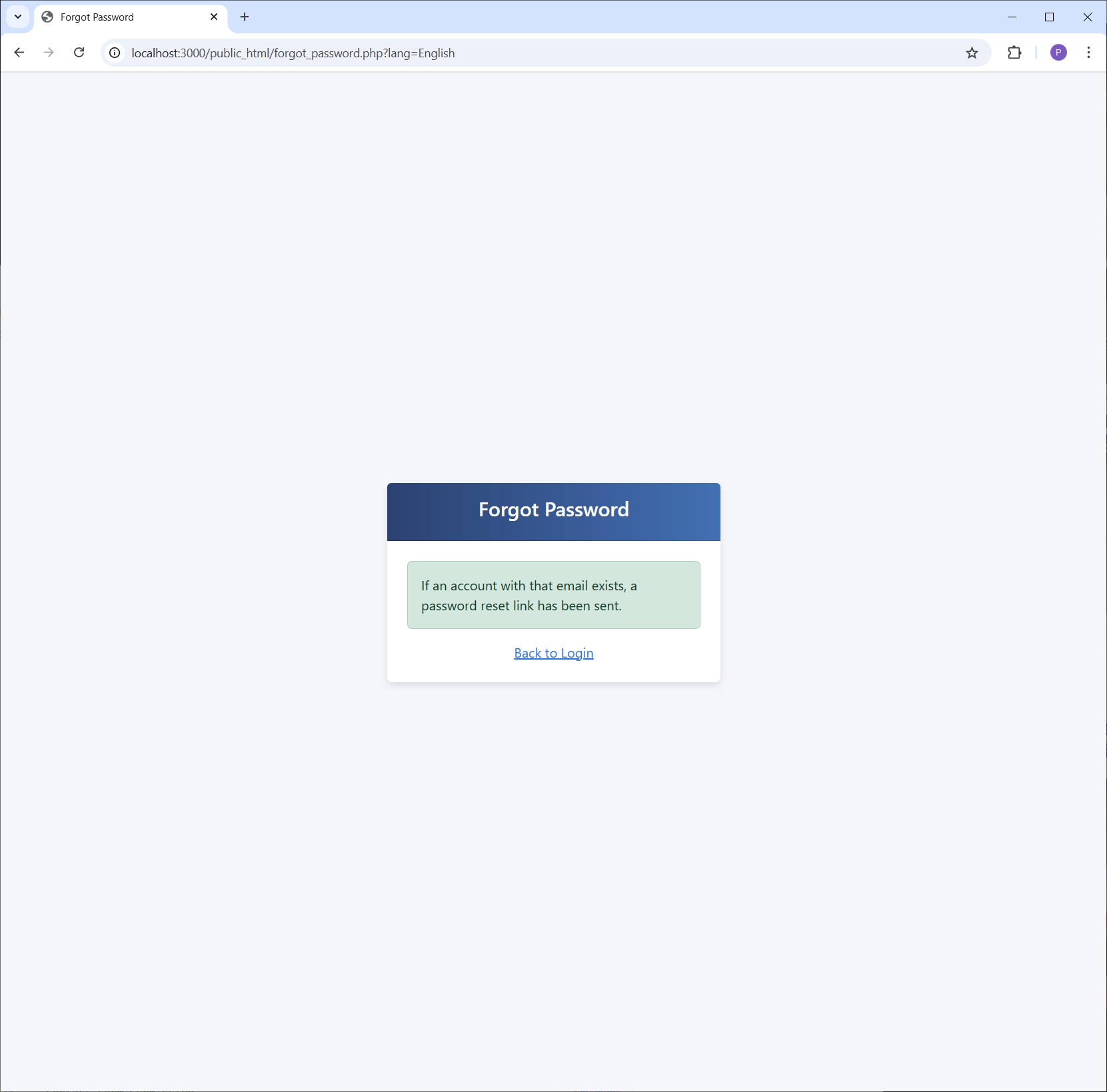
Check for Confirmation
You will see a confirmation message. For security reasons, this message appears whether the email exists in our system or not. Now, check your inbox.
Open the Reset Email
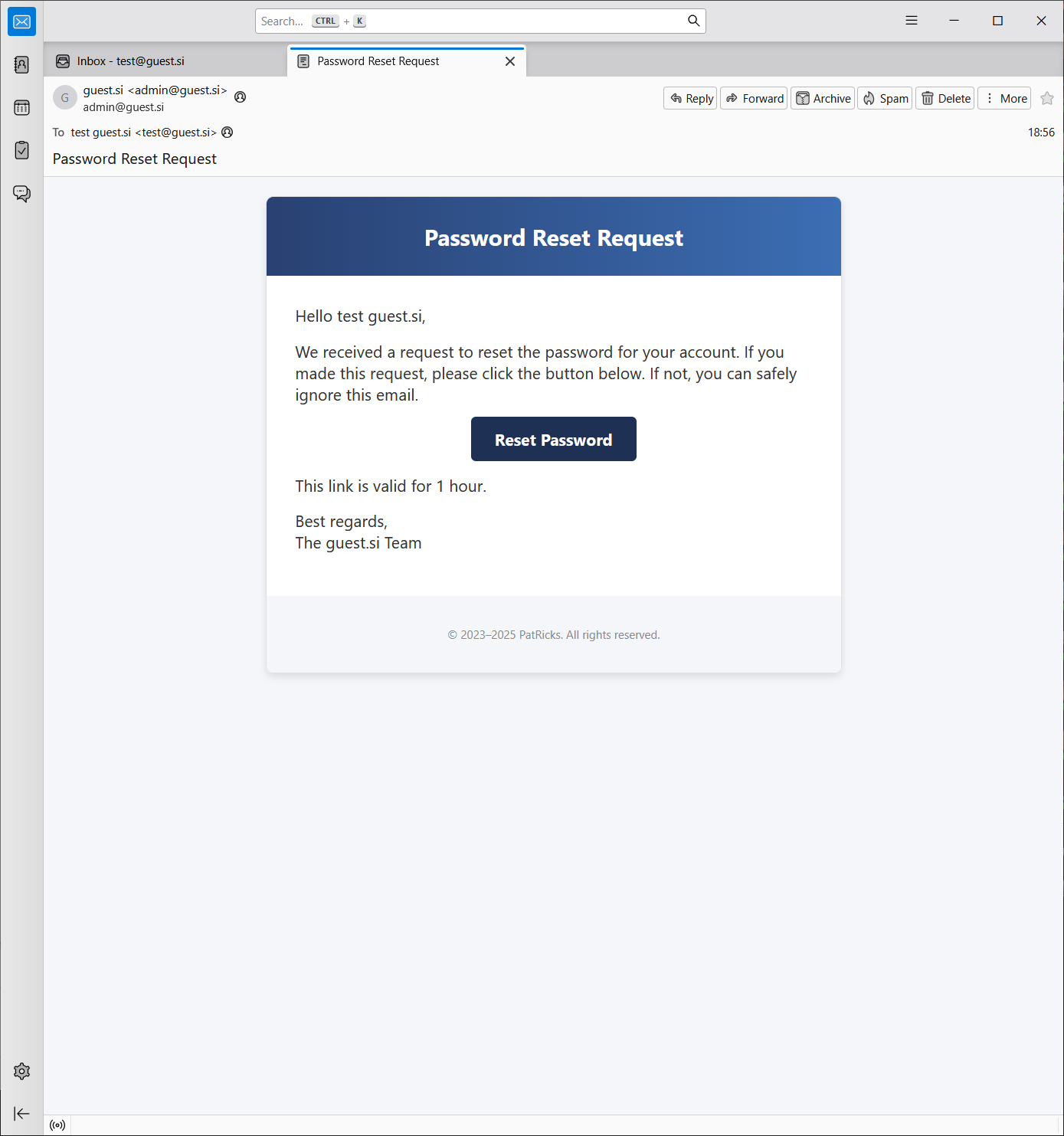
Look for an email with the subject "Password Reset Request". Open it and click the "Reset Password" button. This link is valid for one hour.
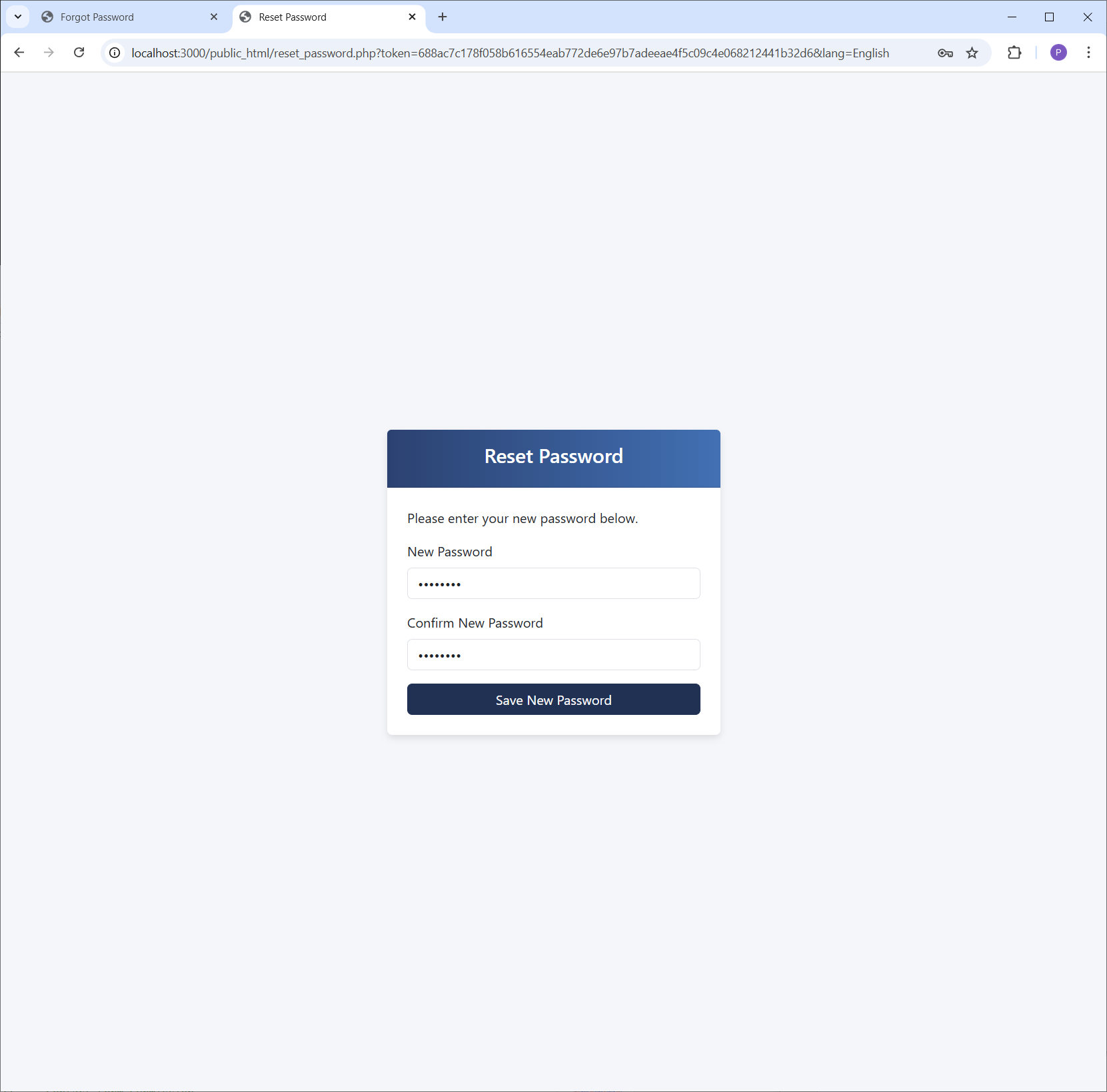
Choose a New Password
You will be taken to the "Reset Password" page. Enter your new, secure password in both fields and click "Save New Password".
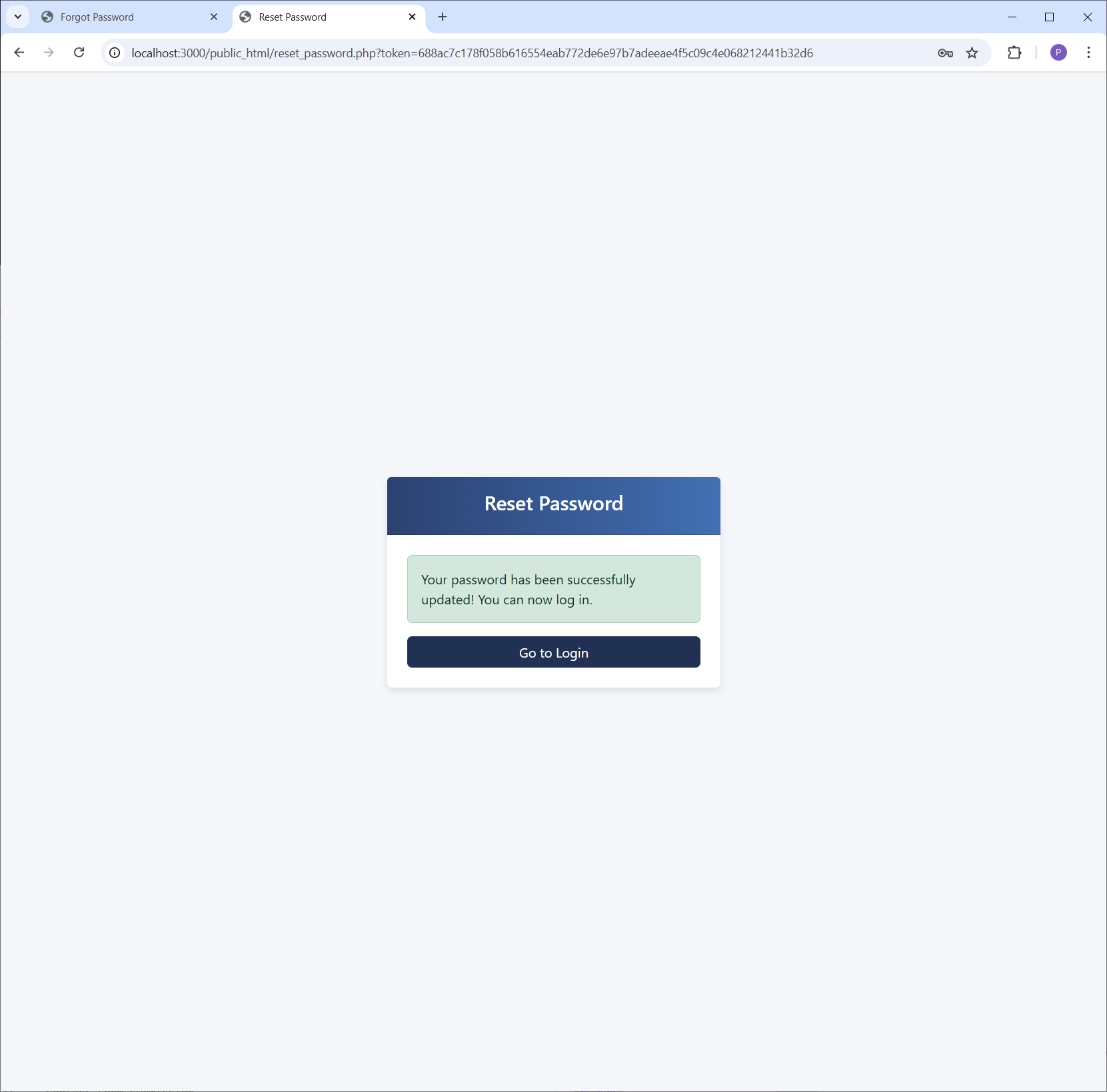
Success!
Your password has been successfully updated! You can now click the "Go to Login" button to sign in with your new credentials.